
Getting Started with RetroLab Pro
No dealer visit, no workshop appointment, no coding knowledge needed. Here's exactly how it works — including how to physically connect your Audi to a PC.
Request → Confirm → Pay
Every activation follows the same clear workflow — and payment never comes before confirmation.
Request Activation
Submit the activation you want for your vehicle through our form. Include your VIN and any relevant details about your setup.
Manual Confirmation
We manually review your request to confirm the activation is supported for your vehicle, equipment and retrofit status. Most requests are confirmed same-day via WhatsApp.
Complete Payment
Payment is only requested after your activation has been confirmed. You never pay for something that isn't approved first.
Connecting to Your Vehicle
Once your activation is confirmed and paid, it's unlocked specifically for your VIN. Here's exactly how the physical connection works — on Windows or iOS.
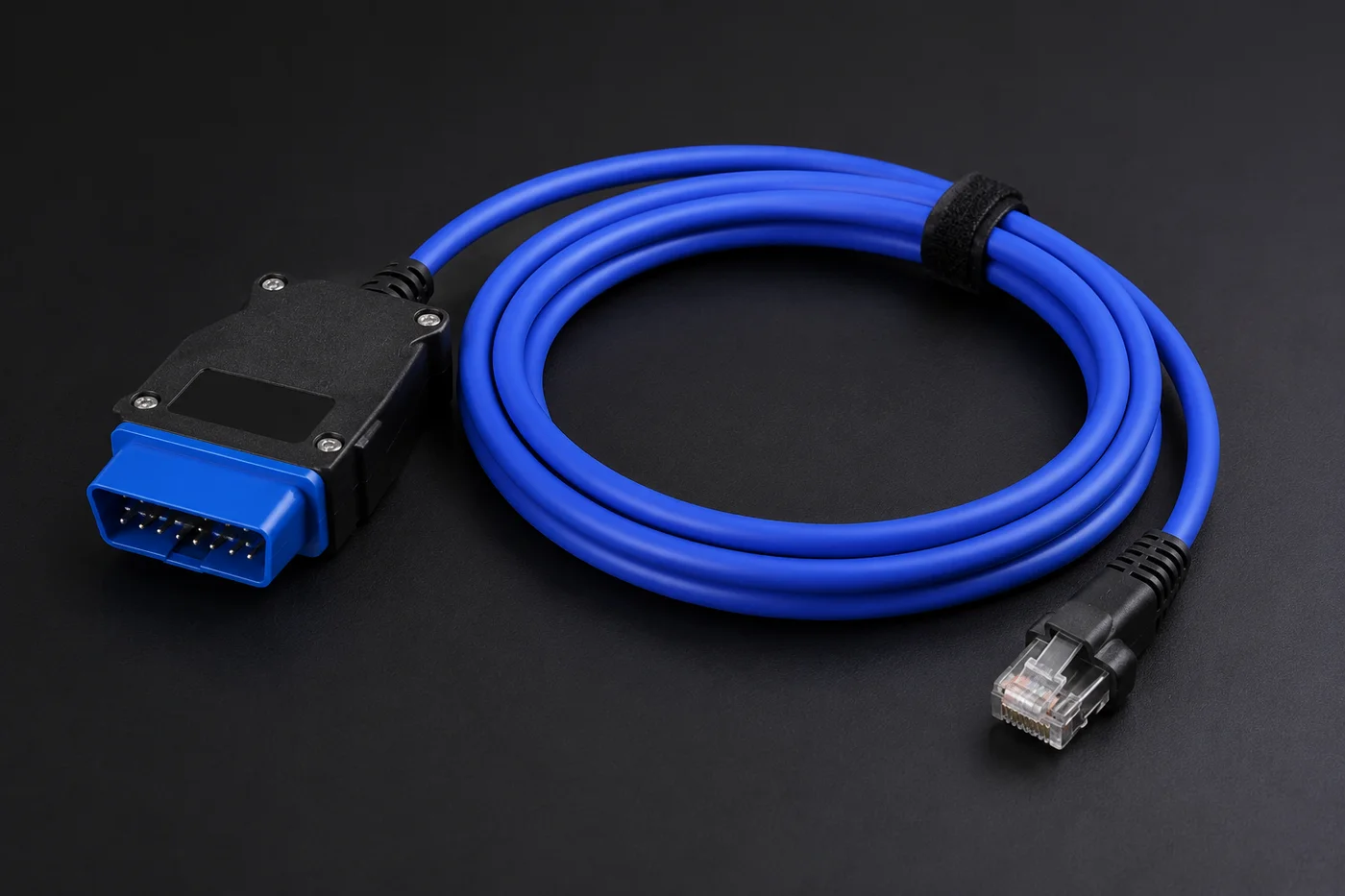
The ENet Cable
This is the only extra hardware you need — a standard ENet cable. It's usually yellow or blue and is often labeled a "BMW ENet" cable, but it works on Audi too — it's simply a DoIP connection. One end has an OBD-II connector for your car, the other end is a standard network (RJ45) connector for your PC or an adapter.
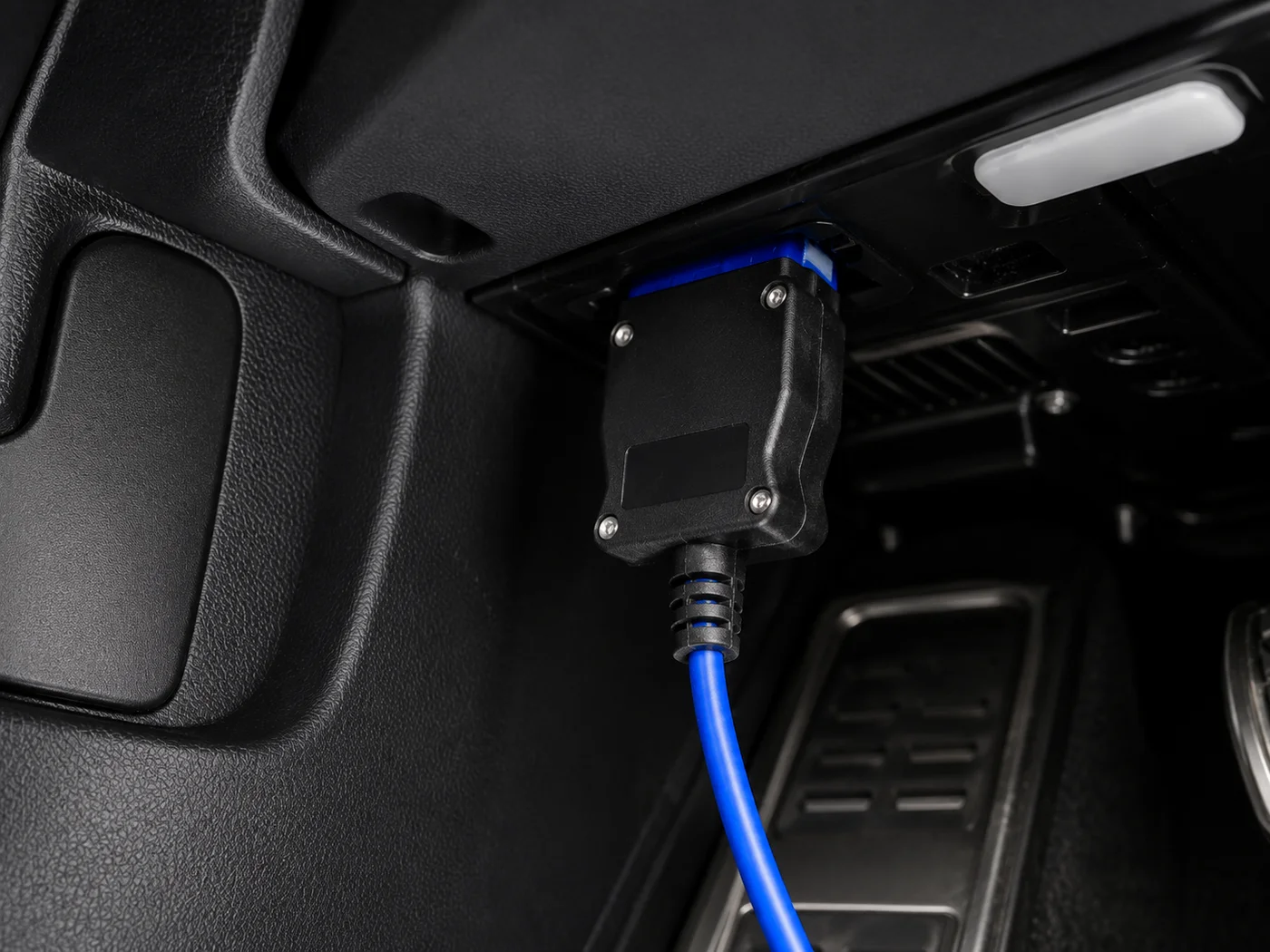
Plug It Into Your Car
On MLBevo platform Audis, the OBD-II diagnostic port is located in the driver-side footwell. Plug the OBD-II end of the ENet cable directly into this port — it's the only physical connection point on the car itself.
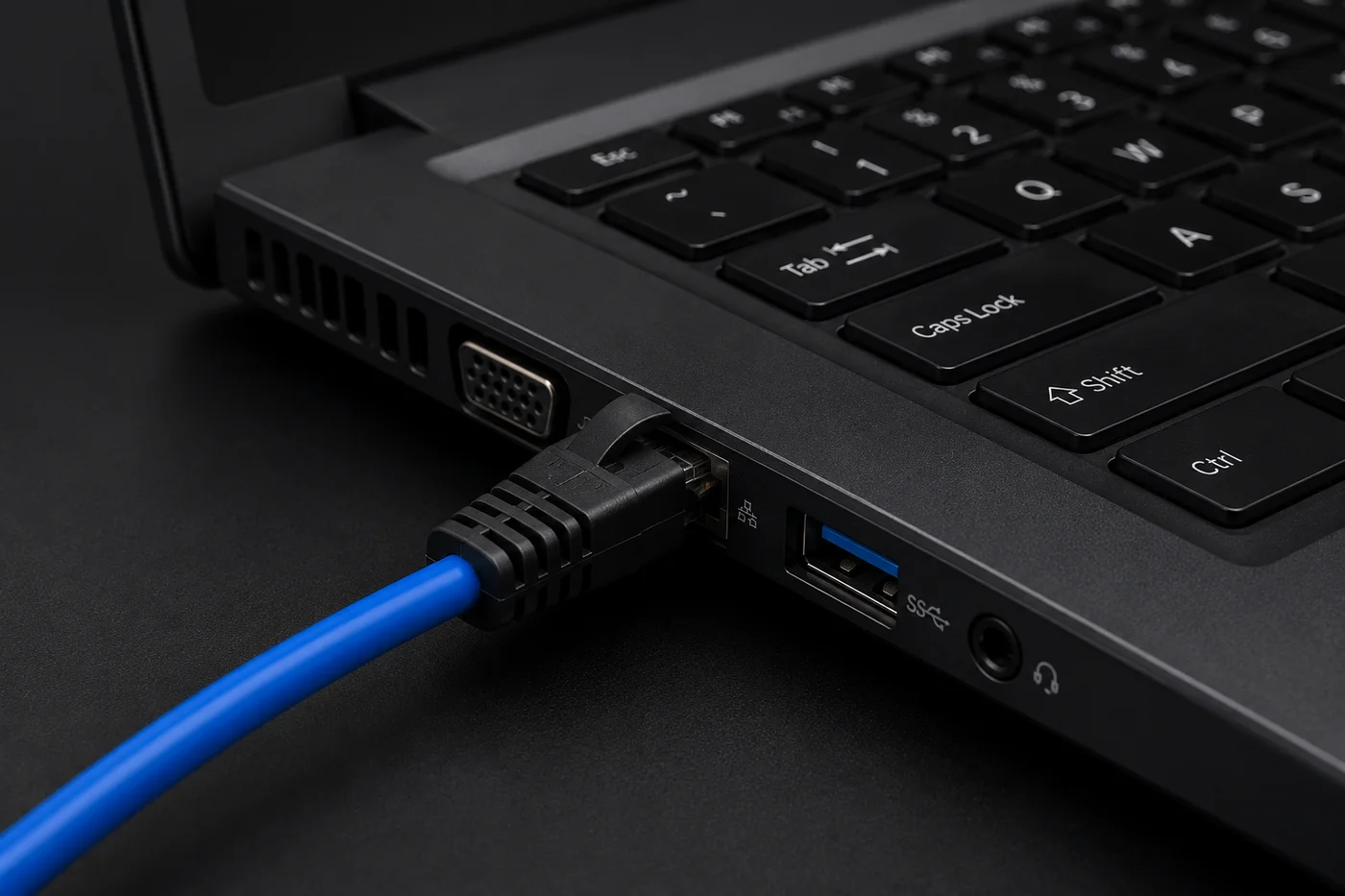
Connect to a PC with a LAN Port
If your Windows laptop has a built-in Ethernet (LAN) port, plug the other end of the ENet cable straight in. That's it — no drivers, no setup.
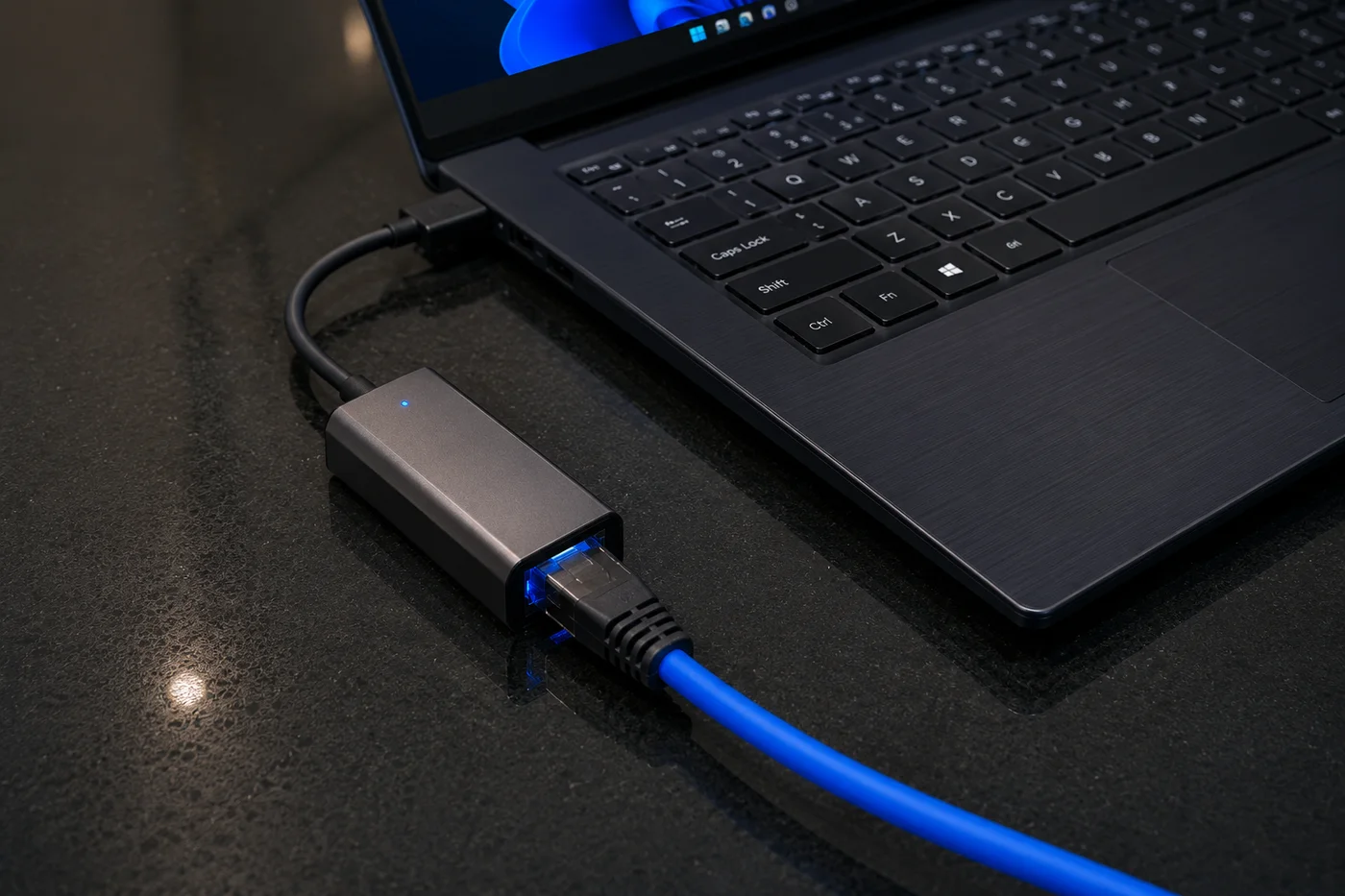
No LAN Port? Use a USB Adapter
Most modern laptops don't have a built-in Ethernet port. In that case, plug a standard USB-C (or USB-A) to LAN adapter into your laptop, then plug the ENet cable into the adapter. Any basic USB-to-Ethernet adapter works.
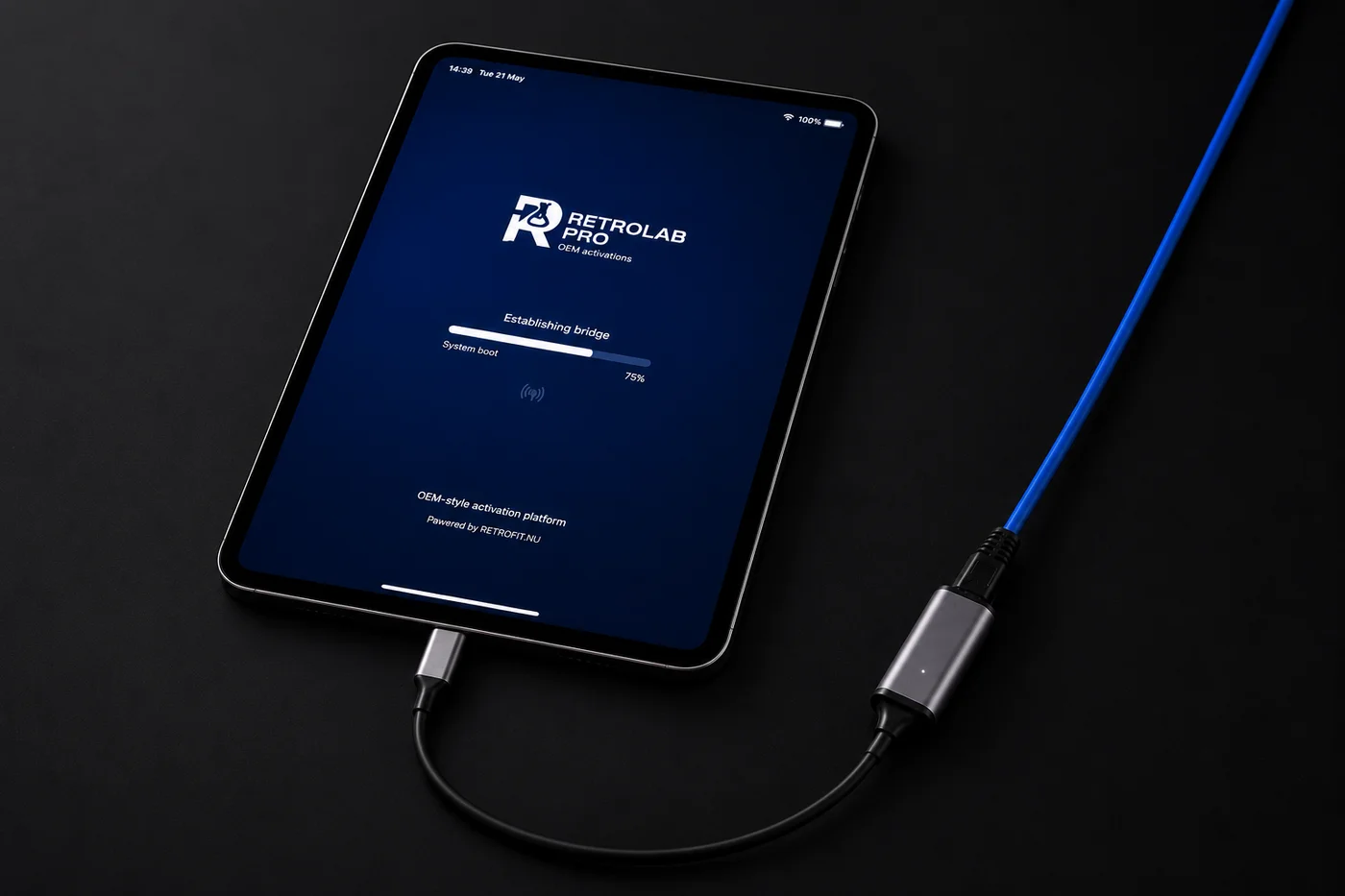
Connect via iPad
Prefer to use an iPad instead of a PC? Connect a USB-C to LAN adapter to your iPad, then plug the ENet cable into the adapter. RetroLab Pro runs the same guided activation on iOS.
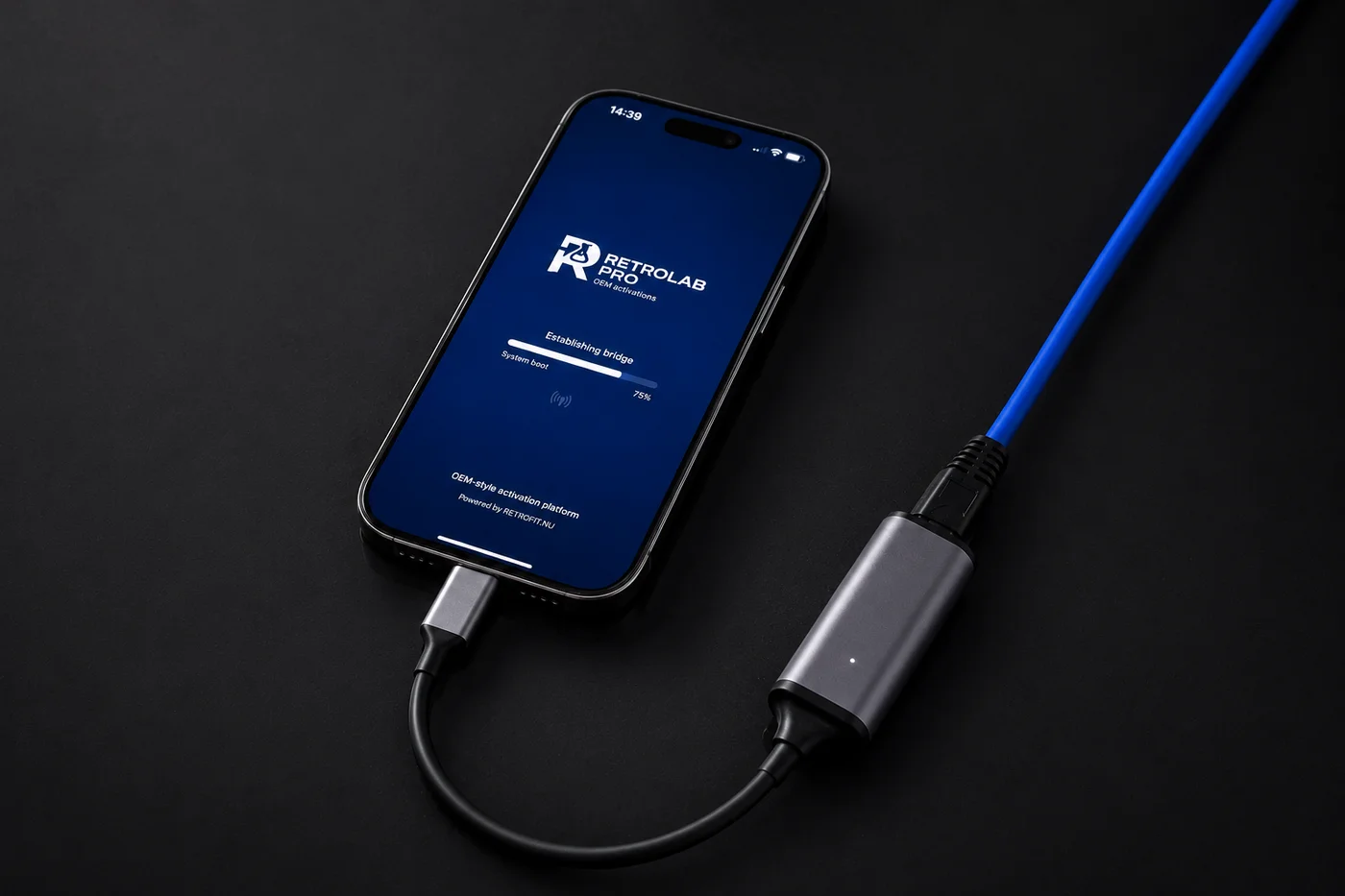
Connect via iPhone
Same process on an iPhone 13, 14, 15, 16, or 17: iPhone 13/14 use a Lightning-to-LAN adapter, iPhone 15/16/17 use a USB-C-to-LAN adapter — connect it to your phone, then plug the ENet cable into the adapter. Same activation, same result — just from your phone.
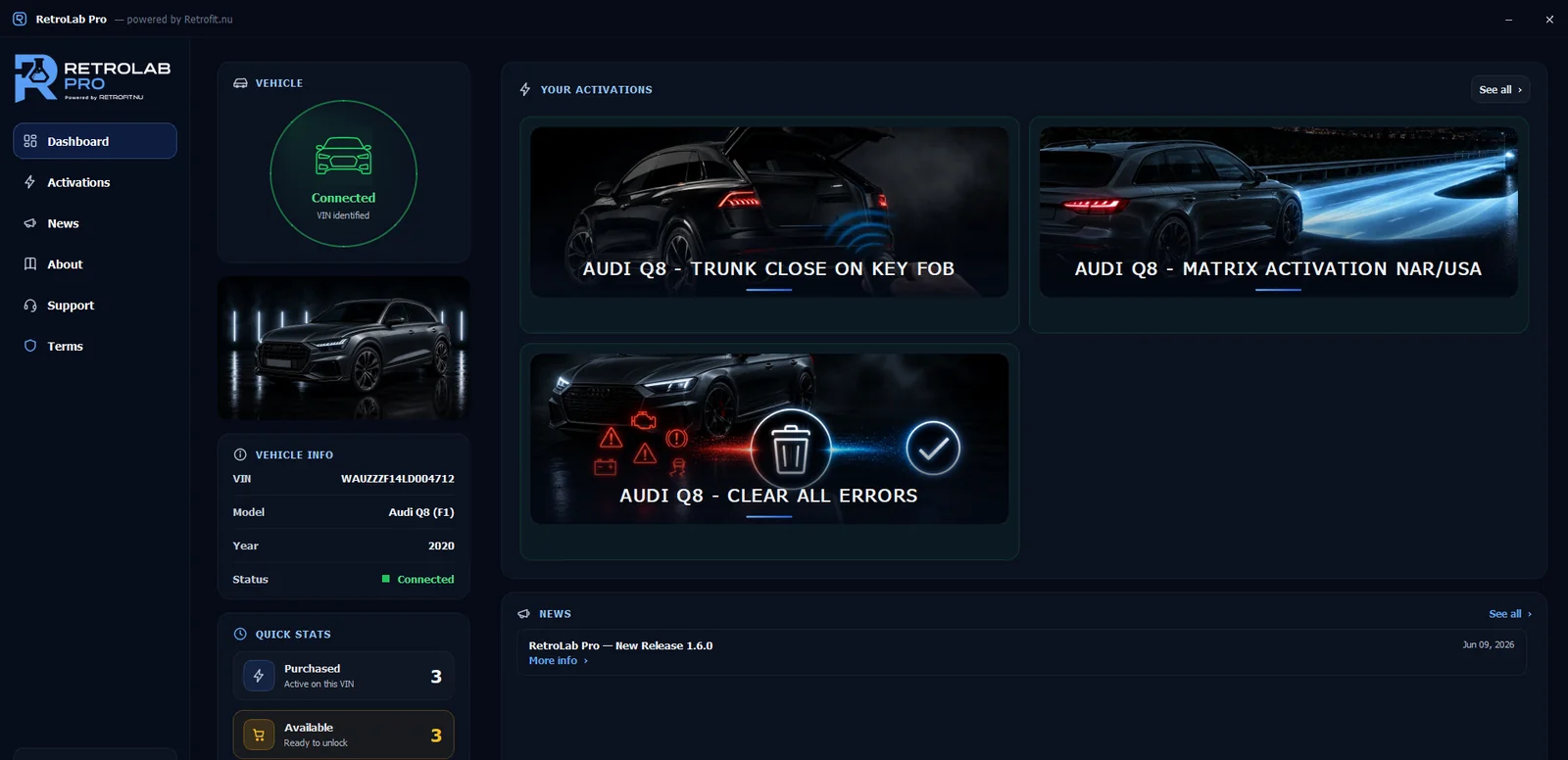
Open the App & Activate
Open RetroLab Pro. It detects your vehicle automatically and walks you through the guided, VIN-specific activation — just follow the on-screen instructions. No coding experience needed.
Ready to unlock your Audi?
Submit your VIN and the activation you want — we'll confirm it works before you pay anything.